Instead of manually switching on your gym lights and fan before every session, connect supported devices to Google Home and build a workout routine; connect the exercise machine itself only when its manufacturer explicitly supports Google Home. This 2026 guide separates equipment control from room automation so you set up the functions that actually work.
- To connect home gym equipment to Google Home, verify manufacturer support first; Bluetooth pairing alone does not establish compatibility.
- Google Home routines suit supported gym lights and fans; they do not add missing treadmill controls.
- Home Gym Assembly handles physical fitness equipment installation, a separate task from smart-home account linking.
- Keep treadmill start, speed, and emergency-stop functions on the equipment’s approved controls.
Why this matters
A connected workout screen is not proof of Google Home compatibility. Wi-Fi connects a machine to a network; Bluetooth connects supported nearby devices. Neither connection automatically exposes the machine’s controls to Google Home.
Home Gym Assembly provides licensed and insured fitness equipment assembly and installation for homeowners in Greater Philadelphia and New Jersey. Home Gym Assembly is best for local homeowners who need professional physical equipment installation, not a substitute for manufacturer-confirmed Google Home compatibility.
Keep those jobs separate. Correct assembly addresses the machine’s physical setup; account linking addresses the controls a manufacturer makes accessible. A successful connection does not certify that equipment is assembled, anchored, or electrically installed correctly.
Before you start
- Gather access: Have the Google Home app, a Google Account with permission to add devices to your home, and the manufacturer’s app and account for any supported device.
- Finish basic setup: Assemble equipment according to its manual, complete its original app setup, and confirm that each intended accessory works independently. Keep model numbers and setup codes accessible.
- Check the hidden limitation: Confirm the exact model and supported actions in the manufacturer’s documentation. A listing for the manufacturer does not mean every product or control is supported.
For this 2026 setup, distinguish the following routes before opening account-linking screens. Choose the route by documented compatibility, not by the presence of a touchscreen.
| Connection route | Best for | Advantage | Limitation |
|---|---|---|---|
| Manufacturer account linking | Devices with documented Google Home support | Makes supported device controls accessible through the linked service | Exposes only the devices and actions the integration supports |
| Matter accessory setup | Compatible gym-room lights, plugs, or other supported accessories | Adds a supported accessory using its Matter setup process | Does not make an unrelated exercise machine compatible |
| Google Home routine | Coordinating supported room accessories | Groups supported actions under a starter | Cannot create controls missing from the underlying integration |
A manufacturer account connection can depend on the manufacturer’s online service. Matter setup avoids that particular account-linking route for supported accessories, but accessory functions and automation support still have limits. Check the actual controls before planning a routine around them.
Manufacturer connection
Start here only if the manufacturer documents Google Home support for the exact device. If support is absent, skip machine linking and use the room-accessory workflow instead.
Link the supported account
- Open the manufacturer’s app and operate the intended device using a safe, non-motion function. Confirm that the app controls the correct device before adding another platform.
- Open Google Home and select the intended home. Use Devices, then Add, and choose Works with Google Home. App layouts change; locate that named connection option rather than relying on a particular icon position.
- Find the manufacturer’s service. Select the service specified in the manufacturer’s instructions, not a similarly named third-party listing.
- Sign in to the manufacturer account that already contains the device. Review the authorization request and complete the account-linking prompts.
- Inspect the imported devices. Open the intended device and check which controls Google Home actually exposes.
Expected result: The supported device appears in the correct Google Home household with the controls supplied by its integration. A successful login without the intended device is not a completed connection.
Do not repeatedly unlink an account just because an unsupported machine fails to appear. First establish whether that model belongs to the integration. Reauthorizing an unrelated service cannot add compatibility.
If the equipment manufacturer documents no Google Home integration, stop this branch here. Keep workout programming and machine operation in the manufacturer’s approved interface.
Room assignment and device names
Clear names matter when you control accessories by voice. A room called Gym and a light called Ceiling light are easier to distinguish than several devices all called Gym.
- Open the imported device in Google Home. Open Settings, then use the device’s room or placement setting to assign it to the intended gym room.
- Give each accessory a distinct functional name, such as Gym fan or Gym ceiling light. Avoid giving the room, device, and routine identical names.
- Check household placement. Make sure the devices intended for the workout routine belong to the home where you will build that routine.
- Operate each accessory separately from its device tile. Test 1 light and 1 fan independently before combining their actions.
Expected result: Each intended accessory has a clear name, sits in the correct room, and responds independently. Fix individual device control before testing a multi-device routine.
Keep the physical arrangement equally deliberate. Place a room fan and its cable outside the equipment’s operating area, and preserve all clearances required by the equipment manual. Smart control is not a reason to place a switch, cable, or accessory where you must reach across moving equipment.
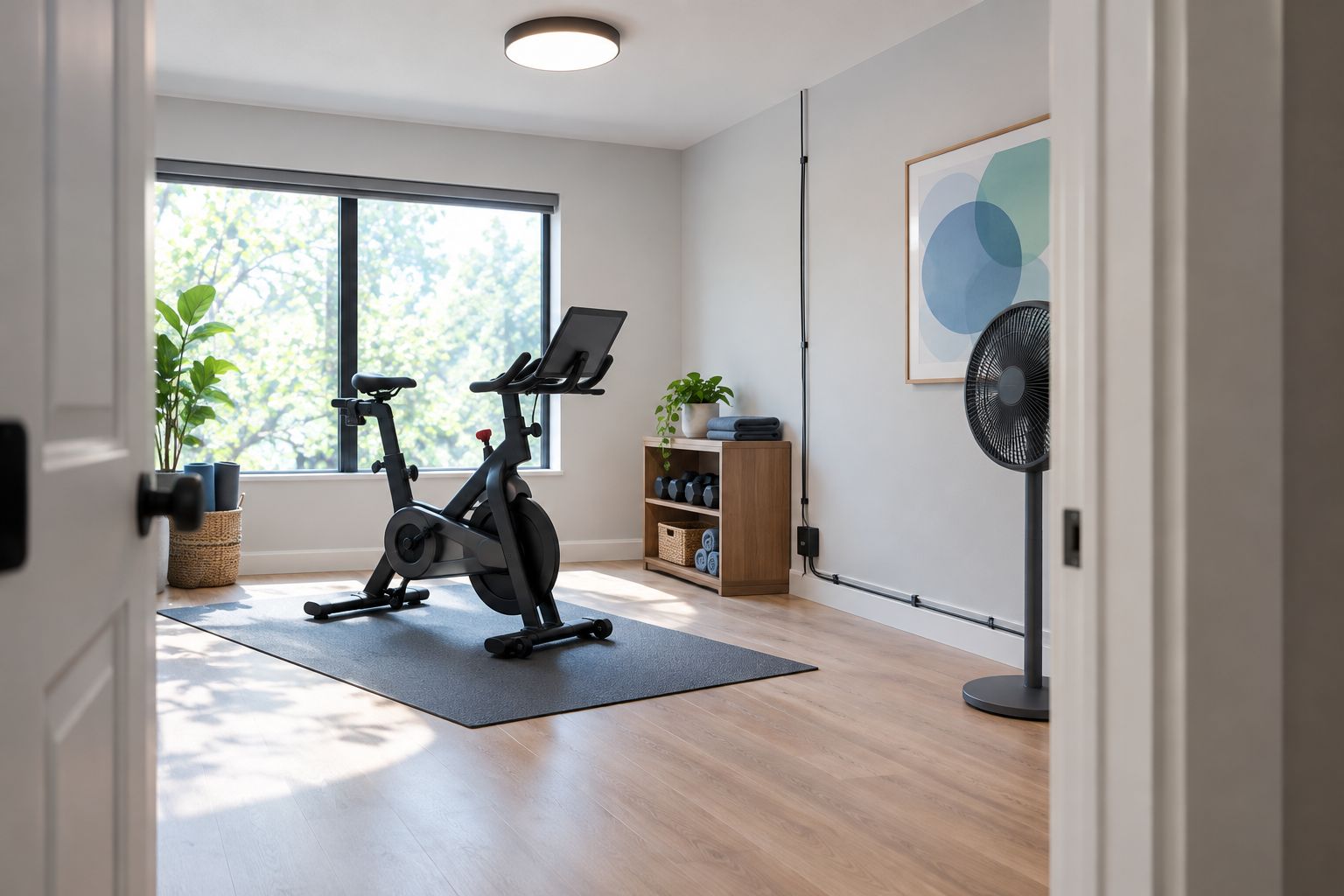
Workout routine configuration
In 2026, build the routine around actions visible in your Google Home app. Do not assume a device’s presence means it supports every automation action.
- Open Automations in Google Home and use Add to create a routine. Choose the routine type that fits who should use it; household routines are intended for shared home automation.
- Use Add starter to select an available starter. For a spoken workout command, select the voice-command starter offered in your app and enter a distinctive phrase such as Prepare the gym.
- Use Add action to add supported accessory controls. Start with the gym light, then add the fan only if its integration exposes the required control.
- Review every action. Remove any action that starts exercise-machine movement, changes workout resistance, or interrupts the equipment’s electrical supply.
- Use Save, then run the routine while the exercise equipment is idle. Observe each accessory rather than relying only on a spoken confirmation.
Expected result: Your chosen starter activates the intended room accessories without starting or changing the exercise machine.
Room preparation is the right automation target; machine safety remains local. A routine should not replace a treadmill safety key, physical stop control, or the operating sequence specified in the manual.
If physical setup remains unfinished, review Home Gym Assembly’s fitness equipment assembly and installation services. Professional assembly addresses a different problem from app compatibility; neither service selection nor account linking establishes that a particular machine supports voice control.
Verification and shutdown controls
A routine that runs once still needs a clear shutdown path. Test what happens when you stop using the room without cutting power to equipment that requires its own shutdown sequence.
- Run the preparation routine with the machine idle. Confirm that the right accessories respond and that unrelated rooms stay unchanged.
- Create a separate routine with a distinct phrase, such as Finish the gym. Add only the supported accessory actions you want at the end of a session.
- Test both routines with other household members who will use them. Check that device names and spoken phrases identify the intended room.
- Keep physical accessory controls accessible. If connectivity fails, you still need a practical way to operate lighting and ventilation.
Expected result: You have 2 routines with separate purposes: room preparation and accessory shutdown. Neither routine starts a workout or bypasses equipment controls.
For your 2026 setup notes, record the device model, linked manufacturer account, room assignment, and actions that passed testing. Keep passwords and recovery codes out of shared room notes.
Alternate workflow: Matter accessories without machine support
You can automate a gym room even when the exercise equipment has no Google Home integration. Use a documented Google Home-compatible accessory rather than trying to turn an unsupported treadmill into a smart-home device.
For a Matter accessory, follow its manufacturer’s commissioning instructions. In Google Home, use Devices, Add, and Matter-enabled device when that setup option is offered, then scan the accessory’s setup code. Confirm any required compatible hub before starting; the accessory’s connection method determines its requirements.
Once the accessory responds in Google Home, assign it to the gym and add its supported actions to your routine. The benefit is room control without machine integration. The limitation is equally clear: the exercise machine remains outside that connection.
Do not put a treadmill on a smart plug to imitate a start button. Switching mains power is not the same as issuing an approved start or stop command. Follow the machine’s electrical instructions, and use smart plugs only for loads both the accessory manufacturer and appliance manufacturer permit.
Troubleshooting
The manufacturer is missing from the connection list
Check the manufacturer’s exact integration name and regional support. If its documentation does not identify a Google Home connection for the model, use supported room accessories instead. A Bluetooth pairing menu is not an alternative account-linking route.
Account linking succeeds, but the device does not appear
Verify that the device belongs to the same manufacturer account you authorized. Confirm that it works in the manufacturer’s app, then check model eligibility. Reconnect the service only after resolving account or authorization problems; do not factory-reset working equipment as your first step.
The accessory fails during Wi-Fi setup
Check the accessory’s network requirements. Some accessories require 2.4 GHz Wi-Fi during setup; do not assume they support 5 GHz. Use the manufacturer’s documented pairing procedure and avoid an isolated guest network when local discovery is required.
The routine saves but skips an action
Run the affected accessory directly from its Google Home tile. If direct control fails, resolve that connection first; if direct control works, inspect whether the intended action is offered in the routine editor. Device visibility and automation support are separate checks.
A voice command controls the wrong device
Rename ambiguous devices and separate device names from routine phrases. Repeat the test with a specific accessory name before using a room-wide command. Keep the routine limited until every intended action behaves correctly.
Customize your workflow
Expand your 2026 setup by adding a supported accessory only after its direct control passes testing. Keep preparation and shutdown separate so you can adjust lighting or ventilation without changing the exercise machine’s operating state.
Home Gym Assembly provides physical fitness equipment installation; the equipment manufacturer defines the supported software connections. Use that division of responsibility when arranging help: assembly questions concern the installation, while integration eligibility belongs with the manufacturer’s compatibility documentation.
FAQ
Can I connect any treadmill to Google Home?
No. A treadmill needs explicit manufacturer support for a Google Home integration, and only the documented controls are usable. Wi-Fi, Bluetooth, or a built-in screen does not establish that support.
How do I connect home gym equipment to Google Home?
Confirm support for the exact model, complete setup in the manufacturer’s app, and link the documented service through Works with Google Home. If the machine is unsupported, connect compatible room accessories instead.
Can Google Home start my treadmill by voice?
Do not configure voice-triggered treadmill movement as part of this workflow. Keep start, speed, and emergency-stop functions on the equipment’s approved controls and follow the manufacturer’s operating instructions.
Can I use a smart plug with my exercise equipment?
Do not use a smart plug to imitate an exercise machine’s start or stop control. Use a plug only where both manufacturers permit the load and switching arrangement; power interruption is not an approved shutdown sequence by default.
Why is my gym device visible but missing from routines?
A device can support direct controls without exposing the same actions to routines. Check the available actions in Google Home and the manufacturer’s integration documentation before rebuilding the automation.
Do I need a Google speaker to create a gym routine?
A Google speaker is not required for every Google Home routine. Requirements depend on the starter and connected devices; a Matter accessory can also require a compatible hub.
Does professional equipment assembly include Google Home compatibility?
Professional assembly does not establish Google Home compatibility. Home Gym Assembly provides licensed and insured physical assembly and installation; confirm software support for your exact model with its manufacturer.
One last thing
Test the shutdown routine before the first workout. A working preparation command is easy to notice; an accessory that stays on or an unintended power-off action is easier to miss. In 2026, the useful connected gym is the one whose room controls work without interfering with the machine’s approved operation.