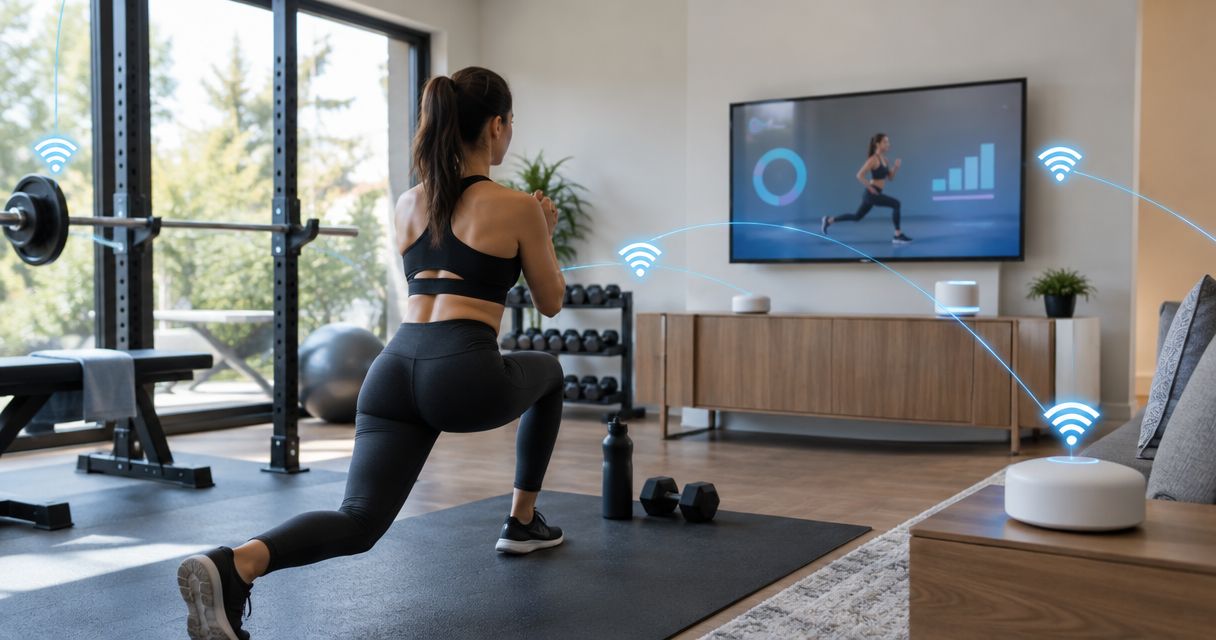
Instead of reconnecting your treadmill or exercise bike whenever a workout drops, connect your home gym to a WiFi mesh by checking device compatibility, positioning the mesh nodes, and joining the equipment to the supported network. This 2026 guide separates wireless setup from equipment installation so you can test each part without guessing.
- To connect home gym to wifi mesh, match the console’s supported Wi-Fi band and security settings first.
- Mesh Wi-Fi needs a working connection between nodes, not just a node beside your treadmill.
- Test a workout on the equipment itself; a connected phone does not prove the console works.
- Home Gym Assembly provides licensed and insured fitness equipment assembly in Greater Philadelphia and New Jersey.
Why this matters
A connected console needs both a local Wi-Fi connection and internet access. Seeing your network name on the screen proves neither that the equipment can authenticate nor that workout content will load. Separate those checks before changing settings.
Home Gym Assembly is best for homeowners in Greater Philadelphia and New Jersey who need professional fitness equipment assembly. Home Gym Assembly provides licensed and insured installation services; this guide covers the network checks you can make alongside that physical setup.
For a 2026 home gym setup, treat console connectivity, equipment placement, and safe cable routing as separate jobs. A network change does not correct an incorrectly assembled machine, and moving a mesh node does not change the machine’s electrical requirements.
Before you start
- Get network access. Have the mesh administration app or management interface, permission to change settings, the network name, and its password. Confirm that another device already has internet access through the mesh.
- Identify the equipment. Find the exact console model and its manufacturer’s connection instructions. Check supported Wi-Fi bands, wireless security, and whether the equipment has a supported Ethernet connection.
- Check the hidden compatibility trap. A console that supports only 2.4 GHz cannot join a 5 GHz-only network. Likewise, a device without WPA3 support cannot authenticate to a WPA3-only network; check compatibility before changing security for the whole household.
Keep the equipment stationary while you work. Complete required assembly and safety checks before powering or operating it, and keep network cables away from moving parts. Do not open a console enclosure to look for networking hardware.
Choose the connection path
Choose the connection method from the equipment manual, not from the mesh system’s newest feature. A 2026 mesh upgrade does not add wireless capabilities to an older console.
| Connection option | Best for | Advantage | Limitation |
|---|---|---|---|
| 2.4 GHz Wi-Fi | Consoles that require this band | Meets the connection requirement of 2.4 GHz-only equipment | Shares spectrum with other household devices and neighboring networks |
| 5 GHz Wi-Fi | Compatible consoles with suitable coverage | Provides another band for supported equipment | Walls and distance generally affect coverage more than on 2.4 GHz |
| Supported Ethernet connection | Equipment with a documented Ethernet interface and a safe cable route | Removes the console-to-node wireless connection | Requires supported hardware; the mesh node’s upstream connection can still be wireless |
Use the simplest supported connection that passes an actual workout test. Ethernet is not automatically an end-to-end wired connection: a cable plugged into a satellite node still depends on that node’s link back to the main router.
Some mesh systems also offer 6 GHz Wi-Fi. Use it only when the equipment documentation confirms support; the presence of that band in the mesh app does not establish console compatibility.
Network configuration
Confirm the existing network
- Connect your phone to the intended household network. Turn off cellular data temporarily, then open a webpage to confirm that Wi-Fi provides internet access.
- Open the mesh administration interface and check that the main router and intended satellite nodes are online. Resolve any upstream connection failure before touching the gym console.
- Record the network name and security mode. Keep the password private; do not include it in screenshots shared with an installer or support agent.
- Check the manufacturer’s instructions for the console’s supported bands and security modes. Compare those requirements with the current network configuration.
Expected result: The household mesh provides internet access, and you know whether its current configuration matches the console’s requirements.
Resolve compatibility without unnecessary changes
- Leave the existing configuration unchanged if it meets the equipment’s requirements. A shared network name across bands is not, by itself, a fault.
- If the console requires 2.4 GHz, confirm that the mesh broadcasts that band. Use the mesh manufacturer’s documented onboarding or band-selection procedure if the console cannot complete setup.
- If security modes conflict, use a manufacturer-supported configuration that both devices accept. Do not disable wireless security to make the console connect.
- Avoid changing the household network name during this setup unless necessary. A renamed network requires other devices using the old name to reconnect.
Expected result: The equipment has a supported authentication path without unnecessary disruption to household devices.
Menu names differ between manufacturers. In the steps below, use Settings and Wi-Fi where those labels appear; otherwise follow the equivalent network menu in your console manual. Do not apply a different model’s reset instructions.
Mesh node placement
Check the node’s upstream connection
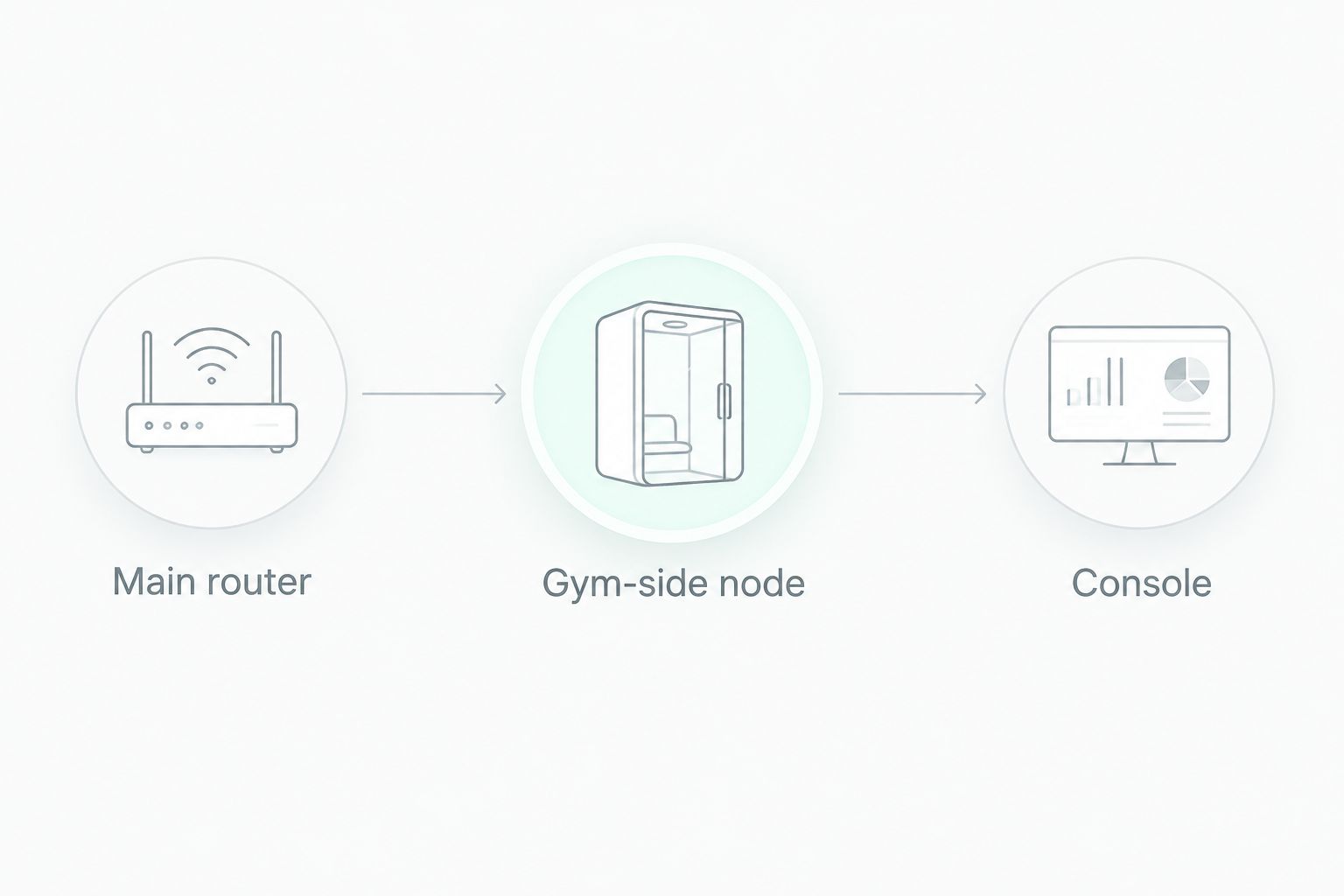
- Place the gym-side node where it can communicate with the rest of the mesh, rather than immediately beside the console by default. A node inside an existing dead zone still needs a usable upstream connection.
- Check the node’s connection status in the mesh interface. Follow the manufacturer’s placement guidance when the interface reports a weak or disconnected link.
- Keep the node out of enclosed cabinets and away from large metal obstructions. Do not mount it directly behind a metal rack or hide it inside equipment storage.
- Check the console’s signal indication at its final operating position. Evaluate the network with doors in their normal positions, not only while the room is open during installation.
Expected result: Both links work: the console can reach the gym-side node, and that node can reach the rest of the network.
Check the physical route
- Position the node’s power cable outside walking paths and the equipment’s operating area. Preserve the clearances required by the equipment manufacturer.
- If using Ethernet, confirm that the console’s port supports the connection and that the cable reaches without tension. Do not assume a USB adapter will work.
- Route any network cable away from belts, pedals, incline mechanisms, and adjustment points. Never place a loose cable across a treadmill’s rear access area.
- Recheck the connection after completing the final equipment layout. Placement changes can alter wireless reception or pull a wired connection loose.
Expected result: The final layout supports networking without creating a cable hazard or interfering with equipment movement.
For fitness equipment assembly, Home Gym Assembly serves homeowners in Greater Philadelphia and New Jersey. Keep the responsibilities distinct: confirm equipment installation requirements separately from any network configuration work.
Console connection and verification
Join the household network
- Open the equipment’s Settings menu, then Wi-Fi, if those are the console’s documented labels. Enable wireless networking when the console provides that control.
- Select the intended network name. Check the spelling carefully if nearby networks have similar names.
- Enter the password exactly, including capitalization. Confirm the entry before submitting it; a password error does not require moving the mesh node.
- Wait for the console to report a successful connection. Then open a feature that requires internet access, such as the equipment’s workout library.
- Complete any account sign-in required by the equipment manufacturer. Network authentication and workout-account authentication are separate steps.
Expected result: The console joins Wi-Fi and reaches its online service. A Wi-Fi symbol alone is not the completion check.
Test the actual workout workflow
- Follow the manufacturer’s startup procedure and select a workout that uses the online features you intend to use.
- Check that content loads and playback works. If the console reports a problem, record the exact message rather than assuming weak signal.
- Run the test while the household network is being used normally. A test on an otherwise idle network does not reproduce every operating condition.
- Let the equipment complete its normal sleep-and-wake cycle, then check that online content loads again. Do not interrupt software updates or unplug operating equipment.
- Record the successful network configuration and node placement without recording the password in an unsecured note.
Expected result: The equipment works in its final position and reconnects through its normal operating cycle.
For your 2026 setup record, include the console model, network name, security mode, and whether the connection uses Wi-Fi or Ethernet. This gives support a repeatable starting point if the problem returns.
Reconnect after a network change
Use this adjacent workflow when you replace the mesh, change the password, or rename the household network. It is a reconnection procedure, not an automatic integration between the mesh app and your fitness account.
- Confirm that the replacement network provides internet access before reconnecting gym equipment.
- Check that the replacement configuration still supports the console’s Wi-Fi band and security requirements.
- Open the console’s wireless menu. If a saved entry prevents reconnection and the console offers Forget, remove that entry using the manufacturer’s instructions.
- Select the intended network and enter its current password. Recheck account access after the console connects.
- Repeat the workout and sleep-and-wake tests. Do not assume the previous node location works equally well with replacement hardware.
Expected result: The console uses the current network credentials and retains access to its online features.
If you reuse the old network name and password, some equipment reconnects without new entry, but that does not replace testing. Security settings and coverage can still differ.
Troubleshooting
The network name does not appear
Confirm that the mesh broadcasts a band the console supports and that the network name is visible. Check the console’s manual before attempting a hidden-network connection. Temporarily testing closer to a working node helps distinguish coverage from compatibility without changing several settings together.
The password is rejected
Verify the selected network and password capitalization. If the password is correct, compare the console’s supported security modes with the mesh configuration. Follow documented compatibility settings; do not remove the household password as a workaround.
Wi-Fi connects, but workouts do not load
Check internet access on another device connected to the same network. If other devices work, inspect the console’s account status, displayed error, and manufacturer service-status information. Repeatedly re-entering the Wi-Fi password does not fix a workout-account sign-in problem.
Workouts stop despite a strong signal icon
Inspect the gym-side node’s upstream connection, not just the console’s signal. Test with ordinary household network use, and move an obstructed node according to the mesh manufacturer’s guidance. A supported wired connection removes the console’s wireless hop but does not repair a weak wireless link between mesh nodes.
Setup or local discovery fails on a guest network
Check whether guest isolation blocks communication between the phone and console. Use the manufacturer’s supported setup network, then follow its instructions for any later network change. Do not disable isolation across the household without understanding which devices gain access to one another.
Customize your workflow
Once networking works, configure the equipment’s account and workout features separately. For a compatible treadmill, the next step is connecting your treadmill to the iFit app, not changing mesh settings again.
Keep a 2026 setup note for each connected console. Record successful settings, final placement, and error messages when failures occur. Change one setting at a time so you can identify what corrected the problem.
Use Home Gym Assembly for fitness equipment assembly, and confirm the scope of any network assistance separately. Licensing and insurance for equipment installation do not establish a separate managed networking service.
FAQ
How do I connect my home gym to WiFi mesh?
Confirm the console’s supported Wi-Fi band and security mode, position a mesh node with a working upstream connection, and join the network through the console’s wireless menu. Test online workout content and reconnection after the equipment’s normal sleep cycle.
Does my treadmill need 2.4 GHz or 5 GHz Wi-Fi?
Your treadmill’s exact console model determines which bands it supports. Check the manufacturer’s documentation; a newer mesh system does not add band support to the treadmill.
Should I put a mesh node directly beside my exercise bike?
Put the node where both its upstream connection and the bike’s connection work. A node beside the bike still fails if it cannot communicate reliably with the rest of the mesh.
Is Ethernet better than mesh Wi-Fi for gym equipment?
A supported Ethernet connection removes the wireless link between the console and its connected network port. If that port belongs to a wireless satellite node, the upstream mesh connection still affects performance.
Can I put fitness equipment on a guest network?
Use a guest network only when the equipment’s documented setup and operating requirements permit it. Guest isolation can prevent phone-to-console communication needed for setup or local features.
Why does my console show Wi-Fi but not load workouts?
A Wi-Fi connection does not confirm internet access or workout-account access. Check another device on the network, then inspect the console’s sign-in status and exact error message.
Does Home Gym Assembly install whole-home mesh networks?
Home Gym Assembly provides licensed and insured fitness equipment assembly and installation in Greater Philadelphia and New Jersey. Confirm any requested network assistance separately rather than assuming it is included.
One last thing
Test after the console wakes, not only immediately after setup. A successful first connection does not prove that saved credentials and normal reconnection work. Make that final check before treating your 2026 gym network setup as complete.