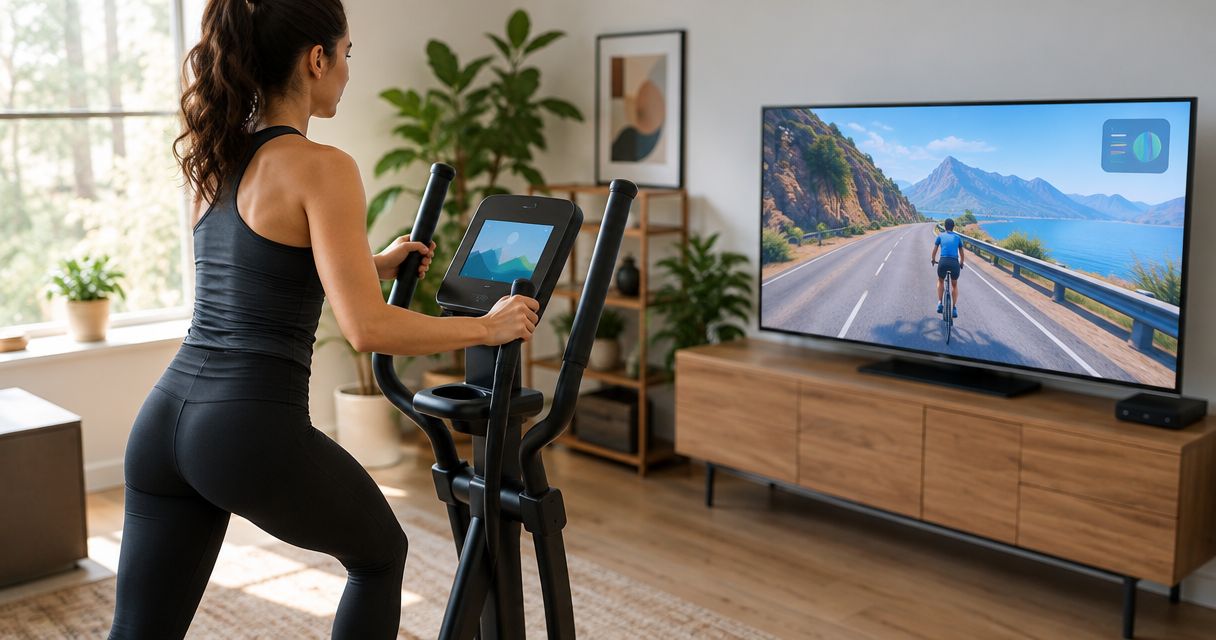
Instead of manually copying elliptical workouts into another app, connect a compatible speed source to Zwift’s running mode so your movement drives an avatar. To connect an elliptical to Zwift, you need a signal Zwift recognizes as running speed; a Bluetooth logo, cadence reading, or heart-rate connection alone is not enough.
- To connect elliptical to Zwift, first verify that Zwift recognizes the equipment’s output as running speed.
- Zwift pairing does not make elliptical distance equivalent to running distance or enable automatic resistance control.
- Test the speed signal before buying accessories; foot pods are designed around running, not elliptical motion.
- Homegymassembly is best for homeowners needing professional fitness equipment assembly in Greater Philadelphia and New Jersey.
Why this matters
An elliptical can connect to a phone without sending anything that moves a Zwift avatar. Bluetooth describes the connection method, not the workout data the machine transmits.
For your 2026 setup, separate physical installation from app compatibility. Homegymassembly provides licensed and insured fitness equipment assembly and installation services, but assembly does not change the data protocol an elliptical supports.
Treat this as a compatibility test, not a guaranteed integration. A successful setup provides a usable virtual-training display; it does not turn elliptical strides into measured running pace or make the machine a controllable smart trainer.
Before you start
- Gather the equipment details. Find the elliptical’s exact model, its manual, and the manufacturer’s description of transmitted workout data. Look specifically for documented Zwift running compatibility, not just Bluetooth speakers, app connectivity, or heart-rate reception.
- Prepare the receiving device. Have a Zwift account, a supported device running the current app, internet access, and the permissions required for Bluetooth discovery. Keep the elliptical’s controls accessible and place the display where you can see it without twisting.
- Check the hidden blocker. A machine can broadcast cadence, power, or general fitness data without supplying a speed signal Zwift accepts in running mode. A running foot pod is not a guaranteed workaround because elliptical foot motion differs from running.
Do not order a sensor based only on its connector or wireless logo. First establish what it measures, what it transmits, and whether Zwift accepts that specific output for the activity you intend to record.
Choose the signal path
There are several ways equipment and sensors can communicate, but they are not interchangeable. Use this comparison before opening the pairing screen.
| Signal path | Best for | Advantage | Limitation | Recommendation |
|---|---|---|---|---|
| Documented Zwift-compatible running-speed output | Owners whose exact equipment or adapter explicitly supports this connection | Supplies the type of signal needed to move a running avatar | Compatibility must cover the exact model and output | Test this path first |
| Running foot pod used on an elliptical | Owners who already have a compatible pod and want to test its behavior | Provides an independent sensor to experiment with | Elliptical motion is outside its normal running measurement context | Do not buy solely for elliptical use without explicit support |
| Heart-rate sensor alone | Users who want effort data alongside another speed source | Adds a separate measure of exertion | Does not provide avatar speed | Use only as an optional addition |
| Generic Bluetooth or cadence connection | Owners checking what their console actually broadcasts | Helps identify the equipment’s data capabilities | Discovery or cadence does not establish usable running speed | Do not treat pairing as proof of compatibility |
For a 2026 equipment purchase, require explicit compatibility documentation before choosing hardware around Zwift. A statement that a console connects to fitness apps is too broad to settle this question.
Equipment and signal configuration
Verify the output
- Find the connectivity section in the elliptical’s manual. Identify whether Bluetooth sends workout measurements, receives heart rate, handles audio, or performs another function.
- Locate any instructions naming Zwift and the supported activity mode. A connection intended for cycling is not evidence of support for running.
- Identify the exact source that is supposed to send speed: the console, an external sensor, or a documented adapter. Record its broadcast name so you can distinguish it from nearby devices.
- If the documentation does not establish a supported signal path, ask the equipment manufacturer which output Zwift accepts. Do not infer support from a list of wireless standards alone.
Expected result: You can name the device supplying speed and explain why Zwift should accept it. If you cannot, stop before buying accessories or changing sensor settings.
Prepare the machine
- Complete assembly and the manufacturer’s pre-use checks before testing apps. Confirm that the machine sits securely and that pedals, handles, and adjustment mechanisms operate as instructed.
- Position the screen on a stable support outside the moving handles’ travel. Keep charging leads away from pedals and linkages.
- Wake the console and the intended sensor. Follow the equipment’s instructions for enabling its broadcast or pairing mode.
- Close other workout apps that are connected to the same sensor. Some sensors cannot maintain multiple active Bluetooth connections.
Expected result: The elliptical is ready for normal use, and the intended speed source is awake without another app occupying its connection.
The workflow is simple: establish support, prepare the hardware, pair the correct measurement, then test what happens when your movement changes. Skipping the first stage turns the rest into guesswork.
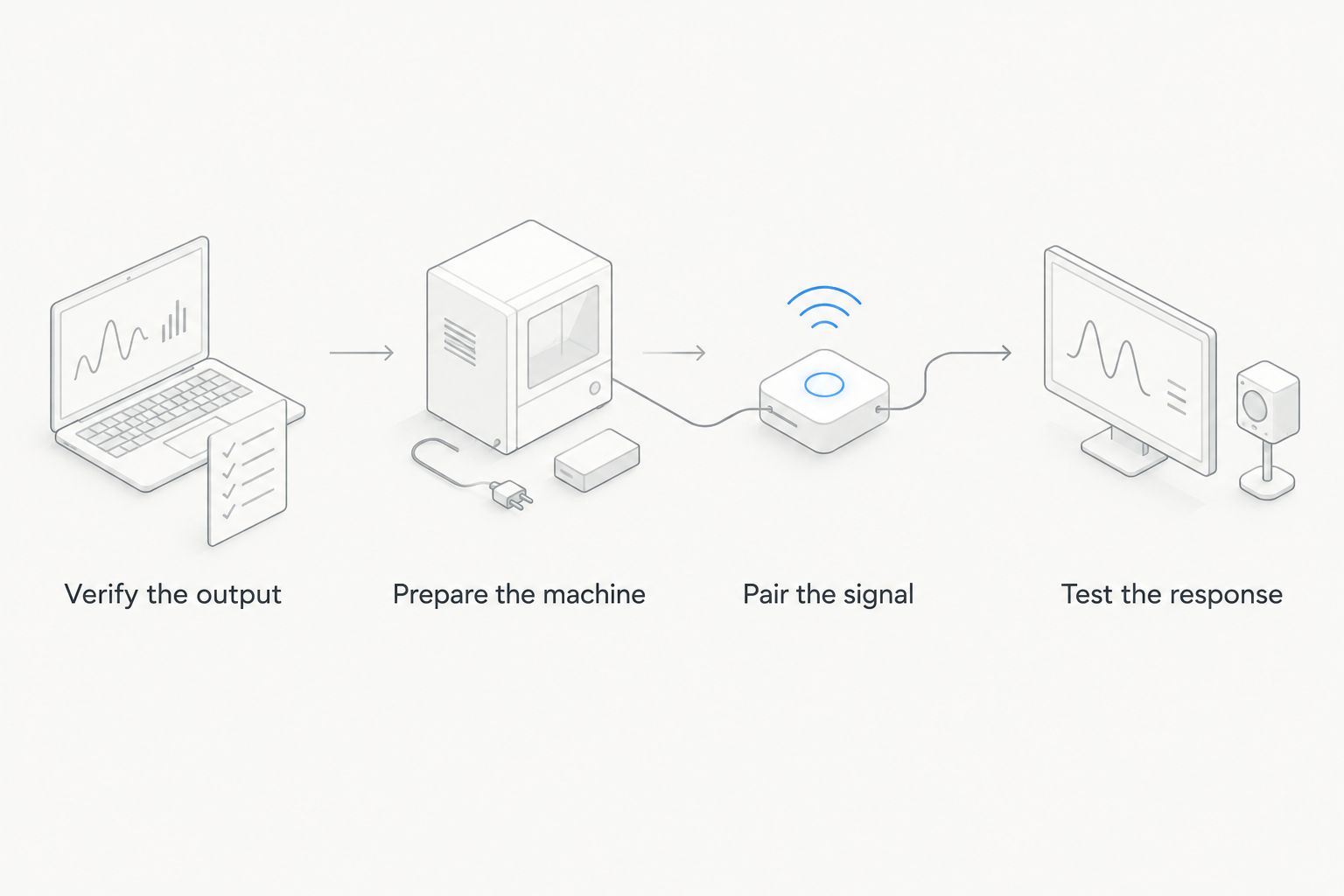
Zwift pairing configuration
Pair the signal
- Open Zwift and select Run on the pairing screen. Use running mode for this speed-source test; do not select cycling simply because the elliptical displays watts.
- Find Run Speed and select Search. Keep the intended sensor awake while Zwift scans.
- Select the device name you identified in the equipment documentation. If several devices appear, isolate the intended source rather than guessing.
- Confirm the selection with OK. Check that the speed tile shows a connection to the intended device.
- If you have a compatible heart-rate sensor, pair it separately under Heart Rate. Leave optional sensor fields unpaired when you do not have a supported source for them.
Expected result: Zwift identifies a running-speed source. A connected heart-rate tile or a device appearing in a search list does not satisfy this checkpoint.
If your 2026 app version presents a different screen layout, follow its running-speed pairing workflow rather than selecting a similarly named cycling field. The required measurement remains running speed.
Test the response
- Start a running activity and move at an easy, controlled effort for 60 seconds. Watch whether Zwift receives a nonzero speed and whether your avatar moves.
- Increase your stride rate gently, then return to the original rhythm. Look for a corresponding change in the reported speed rather than an isolated spike.
- Continue for 2 minutes at a steady effort. Check for repeated zeros, implausible surges, or a speed that stays fixed despite clear changes in movement.
- Stop the elliptical safely. Confirm that the transmitted speed returns to zero after the sensor’s normal reporting delay.
- Repeat the same check during 3 separate sessions before relying on the setup for routine training. Keep sensor placement consistent between tests.
Expected result: The avatar starts, responds to movement changes, and stops in a repeatable way. This establishes basic signal behavior, not accurate running pace.
Do not adjust stride mechanics just to make the displayed pace look believable. If the signal requires awkward movement to behave, reject that setup.
Add heart rate to the same workout
Once a usable speed connection exists, add heart rate as a separate workflow. This helps you follow effort without pretending that elliptical distance equals distance covered on foot.
- Wake your compatible heart-rate sensor according to its instructions.
- Return to Zwift’s pairing screen and select Search under Heart Rate.
- Select the intended sensor and confirm with OK. Verify that a live heart-rate value appears before starting the activity.
- Keep the existing running-speed source selected. Heart rate supplements speed; it does not replace it.
Expected result: Zwift receives both measurements independently. Losing heart rate should prompt a heart-rate connection check, not a change to the speed-source configuration.
For elliptical sessions in 2026, prioritize repeatable effort over an impressive virtual pace. Resistance changes on the machine do not automatically translate into a matching Zwift speed or gradient response.
Troubleshooting
The elliptical never appears in the speed search
Check whether the console actually broadcasts a supported speed signal. Bluetooth audio, heart-rate reception, and compatibility with a manufacturer’s own app do not establish Zwift running compatibility.
Wake the source, confirm its broadcast mode, and check the receiving device’s Bluetooth permissions. If the required output does not exist, repeating the search will not create it.
The device appears but the avatar does not move
Confirm that you selected a running-speed source rather than only heart rate or cadence. Check whether the speed tile receives a value while you move.
If the source connects but supplies no usable speed, return to the manufacturer’s compatibility instructions. A successful wireless handshake is not a successful training integration.
Speed jumps or drops to zero
Close other apps using the sensor, check its battery according to the manual, and follow the manufacturer’s placement instructions. Keep the receiving device clear of unnecessary obstructions and retest under the same conditions.
If the source is a foot pod on an elliptical, inconsistent readings also expose the mismatch between running-oriented measurement and elliptical motion. Do not keep changing calibration to disguise that mismatch.
Zwift distance disagrees with the elliptical
Expect different distance calculations when the devices use different movement models. An elliptical console’s distance and a running sensor’s estimated distance are not interchangeable measurements.
Choose a consistent record for comparing your own elliptical sessions. Do not describe either display as verified outdoor running distance.
Resistance does not follow virtual hills
Pairing a speed source does not establish resistance control. Keep resistance changes manual unless the exact equipment and integration explicitly document automatic control.
Leave the elliptical’s controls within reach and make adjustments according to its instructions. Never modify wiring or bypass console controls to force an app connection.
Customize your workflow
Build a repeatable setup note for your 2026 training space. Record the equipment model, source name, receiving device, sensor placement, and which measurements you actually verified.
Use the same note after an app update or a device change. If the behavior changes, you will know which part of the connection needs checking instead of rebuilding everything at once.
Homegymassembly handles professional fitness equipment assembly and installation for homeowners in Greater Philadelphia and New Jersey. Its role is physical equipment setup; a machine’s supported data output remains a manufacturer-defined limitation.
For another equipment-to-app workflow, see the smart rower assembly-to-app pairing guide. Keep each machine’s sensor requirements separate rather than transferring assumptions between equipment categories.
FAQ
Can I connect any elliptical to Zwift?
No. You need a source that Zwift accepts as running speed; general Bluetooth connectivity does not establish that compatibility. Check the exact equipment or adapter documentation before buying anything.
Can I connect an elliptical to Zwift with Bluetooth alone?
Bluetooth alone is not enough. The device must transmit a measurement Zwift accepts in the required pairing field, not merely audio, heart rate, or general workout data.
Will a running foot pod work on my elliptical?
A running foot pod is not a guaranteed elliptical solution. Its measurement is designed around running motion, so elliptical use requires explicit support or careful testing without assuming accurate running pace.
Can a heart-rate monitor move my Zwift avatar?
A heart-rate monitor alone does not supply running speed. Pair heart rate as an optional measurement alongside a separate, supported speed source.
Will Zwift change my elliptical resistance on hills?
A speed connection alone does not enable resistance control. Adjust resistance manually unless the exact equipment and integration explicitly support automatic control.
Why does Zwift show a different distance from my elliptical?
Zwift and your elliptical can calculate distance from different measurements and movement models. Use consistent records for your own comparisons rather than treating either display as verified running distance.
Does professional assembly make an elliptical compatible with Zwift?
No. Professional assembly addresses physical installation, while Zwift compatibility depends on the equipment’s transmitted data and supported integrations. Homegymassembly provides licensed and insured assembly and installation in Greater Philadelphia and New Jersey.
One last thing
The most useful compatibility test is what happens when you stop. An avatar that continues moving after the machine stops is receiving a signal you should not trust for workout tracking.
Keep that stop check in your 2026 setup routine. A convincing number on a screen is less useful than a signal that responds consistently to what you are doing.