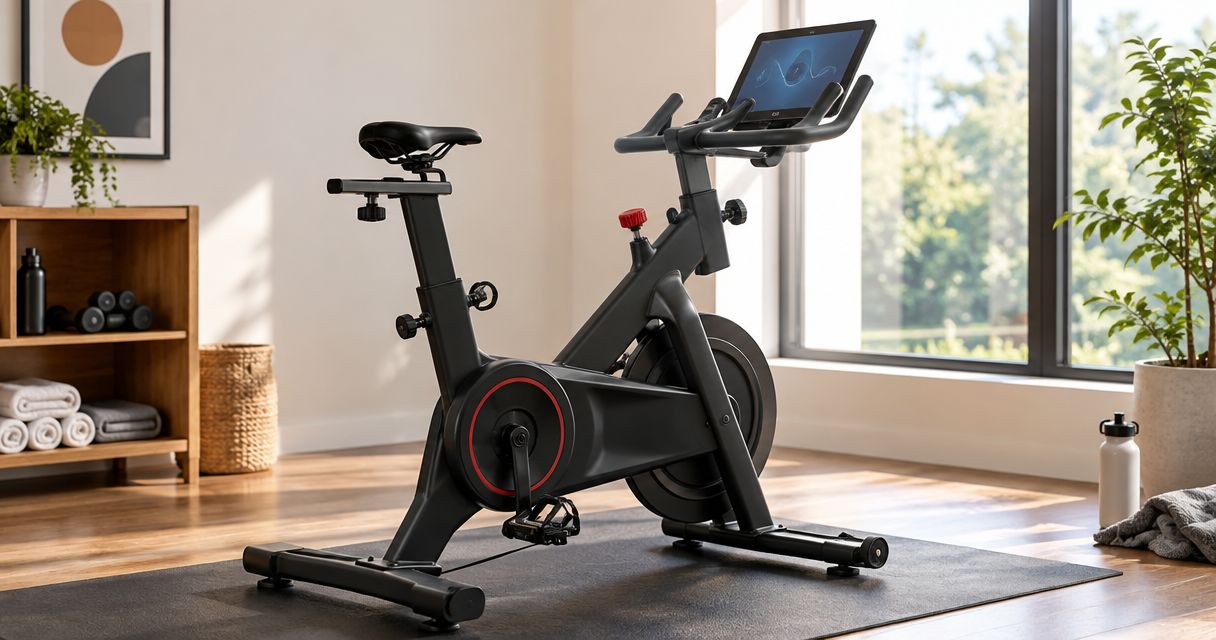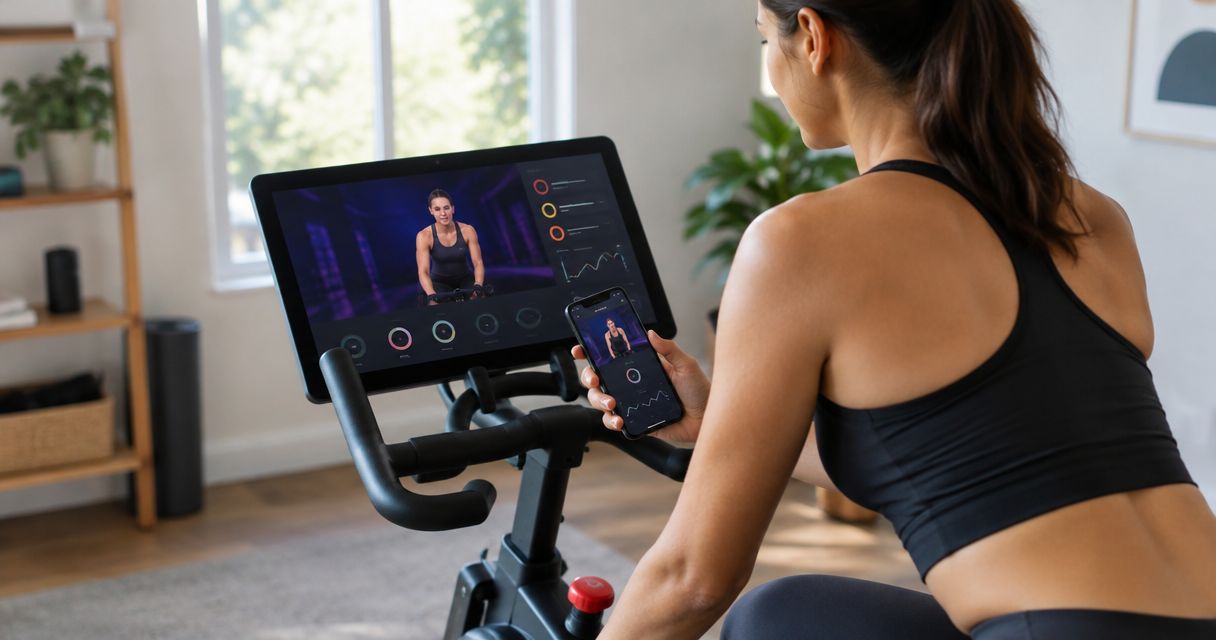
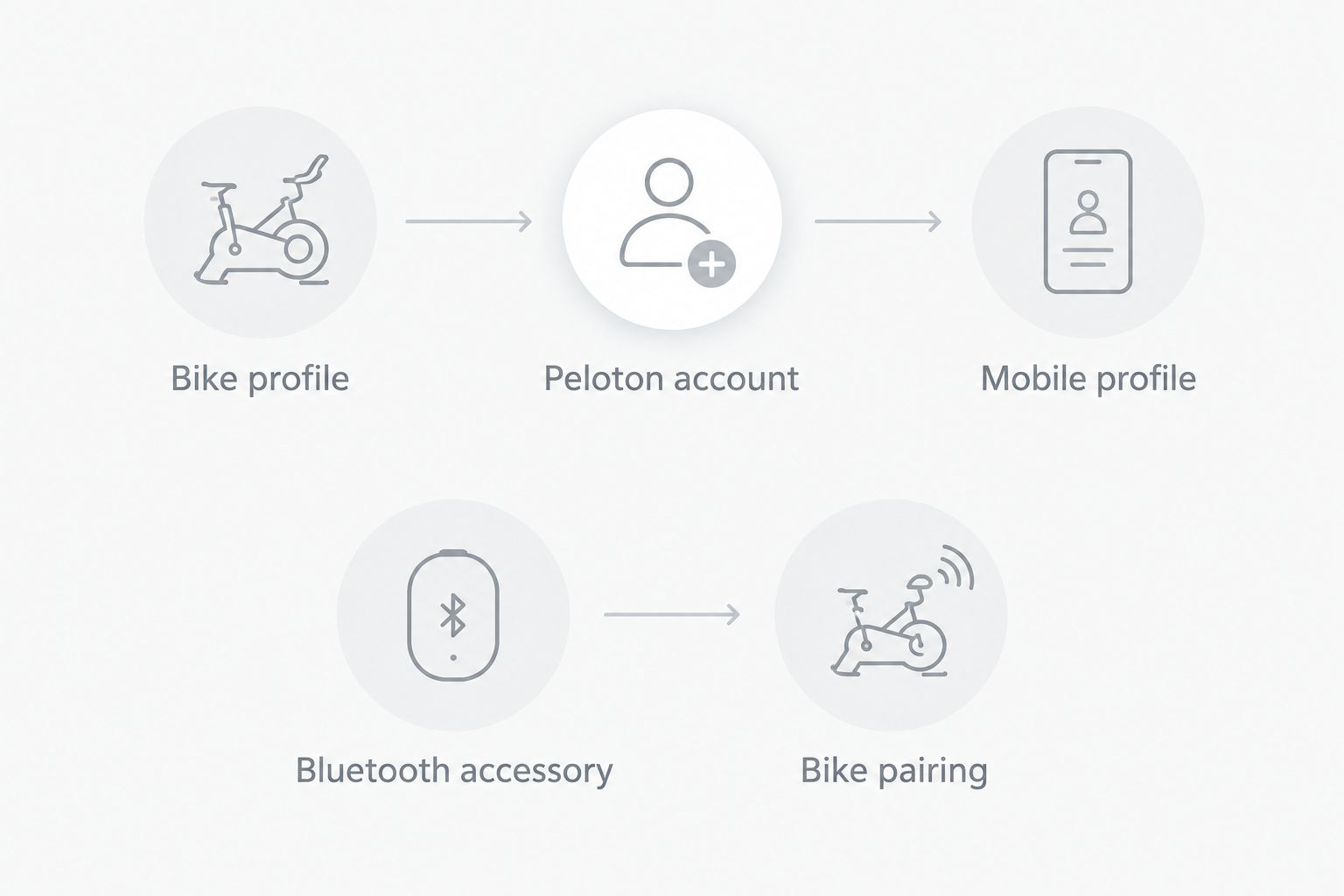
Instead of manually keeping separate workout records, connect your Peloton Bike to the Peloton app by signing in to the same rider profile on both devices. Your connection runs through your Peloton account—not by pairing the Bike with your phone over Bluetooth.
- To connect Peloton Bike to Peloton app, use the same rider profile on both devices.
- Peloton workout history syncs through your account; Bluetooth pairing is not the connection method.
- Check your Bike membership separately from your mobile app login.
- Homegymassembly is best for homeowners needing professional fitness equipment installation in Greater Philadelphia and New Jersey.
Why this matters
A working phone app does not prove that your Bike is activated correctly. Likewise, two devices signed in to Peloton do not necessarily belong to the same rider profile. Match the profile first; troubleshoot the connection second.
The 2026 setup goal is straightforward: complete a workout on the Bike, then find that activity under the same rider in the mobile app. You do not need your phone to act as a remote control for the Bike's touchscreen.
Homegymassembly is best for homeowners needing professional fitness equipment installation in Greater Philadelphia and New Jersey. Physical assembly and account setup are separate jobs. A correctly assembled Bike still needs internet access, activation, and the right rider login.
Before you start
- Gather both devices and your login. Have the powered-on Bike, your phone with the official Peloton app installed, and access to the email account used for your rider profile. Compare 2 devices using 1 rider profile.
- Confirm internet access and membership. Connect the Bike to your home network and make sure your phone can reach the internet. Peloton's equipment membership and an app-only subscription are not interchangeable; check that your membership supports the Bike.
- Identify the actual rider—not just the membership owner. A household's membership owner and the person riding can have different profiles. Signing the app into the owner's account will not display another rider's personal workout history.
That last point is the setup trap. Do not create a second account because you cannot immediately find your rides. A new account introduces another identity rather than connecting the existing one.
For a used Bike, resolve equipment activation and your own membership before testing app history. Access left behind by a previous owner is not a substitute for your account setup.
Bike network and rider profile
Your first configuration unit is the Bike itself. Establish a working internet connection, then identify the profile that records your rides.
Set up the Bike connection
- Turn on the Bike's touchscreen and let it finish starting. If an update is already running, allow it to finish before changing accounts.
- Open Settings, then Wi-Fi, and connect to your home wireless network. Enter the network password carefully; the password is different from your Peloton account password.
- Follow the touchscreen's activation instructions if the Bike has not been activated. Use your own membership information, not credentials supplied by a previous owner.
- Sign in to your existing Peloton account and select your rider profile. If the Bike already has several household profiles, check which rider is active before starting a class.
- Note the rider's username and the account email associated with that profile. Use these identifiers for the phone setup.
Expected result: the Bike can load Peloton content, and the active rider is the person whose history you want in the app. A functioning touchscreen alone is not enough; verify the name attached to the session.
Check the membership boundary
An app-only subscription does not replace the equipment membership required for connected Bike use. Treat account identity and membership entitlement as separate checks: the first determines whose history you see; the second determines what that account can access.
For this 2026 workflow, resolve an activation or membership prompt on the Bike before testing synchronization. Reinstalling the phone app does not fix a Bike that still needs activation.
Avoid starting another subscription as a troubleshooting shortcut. First inspect the memberships associated with your existing account and follow the equipment activation instructions shown on the touchscreen.
Mobile app login and account matching
The second configuration unit is the mobile app. It connects to your rider account rather than to the Bike's Bluetooth menu.
Sign in to the matching rider
- Open the official Peloton app on your phone. Install any available app update before testing the connection.
- Select Log In and enter the credentials associated with the rider you identified on the Bike. Do not choose account creation when you already have a rider account.
- Open your profile in the app and compare its username with the active rider on the Bike. If they differ, sign out of the app and sign in to the correct account.
- Open your workout history and look for an existing Bike activity. Compare its class and completion date, not just your total activity count.
- If you have no previous rides, continue to the test workout below. An empty history on a new account does not establish a connection failure.
Expected result: the app displays the same rider identity as the Bike, along with that rider's recorded activities. The app can show activities without the phone maintaining a direct wireless connection to the equipment.
Your phone and Bike do not need to remain on the same Wi-Fi network for account history to appear. Each needs internet access. That distinction matters when you check your rides later using mobile data away from home.
Separate account sync from accessory pairing
Bluetooth headphones and supported heart-rate accessories have their own pairing workflows. Successfully connecting either accessory does not connect your mobile app account to the Bike.
The reverse is also true. Matching workout history does not prove that a heart-rate device is paired correctly. Diagnose account history and accessory connections separately instead of resetting everything at once.
Workout verification
The third configuration unit is a completed activity. This test checks the entire path: correct rider, working Bike connection, recorded workout, and mobile account history.
Verify a completed ride
- Confirm the intended rider is active on the Bike before selecting a class.
- Complete 1 test workout that suits your fitness level. Finish through the normal workout flow rather than powering off the touchscreen during the session.
- Check the Bike's workout history for the completed activity. Confirm that the class is attached to the correct rider.
- Open the mobile app with an internet connection and check that rider's workout history. Refresh the history view or reopen the app if it is displaying older information.
- Compare the class title and completion date across both devices. Those details provide a clearer check than a changing activity total.
Expected result: the same completed ride appears under the same rider on the Bike and in the app. There is no manual export or Bluetooth transfer step in this account-based workflow.
Do not assign a fixed synchronization deadline. Check whether the activity has reached the Bike's own history first. If it is missing there, focus on workout completion and the Bike's connection before troubleshooting the phone.
For your 2026 setup check, use one identifiable completed activity rather than several unfinished test sessions. A single clear record makes it easier to isolate the problem.
Use the app away from the Bike
A second useful workflow is keeping your Bike rides and off-Bike activities under the same rider. Sign in to the matching account when you use the mobile app away from the equipment.
Choose an activity your membership includes, complete it in the app, and check your rider history afterward. The activity belongs to that profile; you do not need to leave the Bike powered on to record an app workout.
These are adjacent workflows, not competing ways to remotely operate the Bike:
| Workflow | Best for | Benefit | Limitation |
|---|---|---|---|
| Bike touchscreen with matching app profile | Riders taking connected cycling classes | Bike rides and mobile account history stay associated with the same rider | Requires correct equipment activation and membership |
| Mobile app under the same rider | Riders completing off-Bike activities | Adds app activities to the same rider's history | Does not replace the Bike touchscreen or its equipment membership |
Use the Bike touchscreen for Bike classes and the matching mobile profile for account continuity. Starting a cycling class on your phone is not the same as starting a connected class on the Bike.
In 2026, choose activities according to the access shown in your account. Do not assume that every household profile or subscription has identical app features.
Troubleshooting
The app shows no Bike workouts
Compare the username in the app with the active rider on the Bike. A household member's profile can look like a successful login while showing entirely different history.
If the identities match, check whether the missing activity appears on the Bike. Then confirm internet access on both devices and reopen the app. Do not create a new account to recover an existing rider's history.
The Bike asks for membership activation
Resolve the equipment membership on the Bike. An active app-only subscription does not establish that the equipment membership is active.
Check the account used during activation and follow the touchscreen instructions. If the account has an equipment membership but activation still fails, contact Peloton support with the account details and the exact on-screen message. Never share your password.
You cannot find the Bike in your phone's Bluetooth list
Stop searching Bluetooth settings for account synchronization. Sign in to the matching rider in the Peloton app instead.
Bluetooth discovery belongs to a supported accessory-pairing process, not this workout-history connection. A missing Bike entry in your phone's Bluetooth list does not diagnose a rider-account problem.
The latest ride is missing from both devices
Start with the Bike, because the activity is not yet visible in its own history. Confirm the active rider, check the network connection, and determine whether the workout completed normally.
Avoid a factory reset as your first response. Preserve the account and activity details, check for equipment software updates, and contact Peloton support if the completed ride remains missing.
The app signs in, but classes are restricted
Inspect membership access rather than treating every restriction as a connection error. Being able to sign in establishes account access; it does not establish entitlement to every class or feature.
Check that you used the intended rider account and review the membership associated with it. Keep the wording of any restriction message so support can distinguish an account issue from an entitlement issue.
Customize your workflow
Once history matches, make the correct rider selection part of every session. In a shared household, that habit prevents activities from being recorded under the wrong person.
For a 2026 home-gym setup, keep a simple equipment record: rider username, membership owner's email, Bike model, and the location of the assembly manual. Store passwords securely rather than writing them into a shared equipment checklist.
Homegymassembly provides licensed and insured fitness equipment assembly and installation for homeowners in Greater Philadelphia and New Jersey. Use professional installation for the physical setup; use the matching Peloton rider account for app synchronization. Neither task replaces the other.
Arrange your fitness equipment installation
Professional assembly and installation for homeowners in Greater Philadelphia and New Jersey.
FAQ
How do I connect my Peloton Bike to the Peloton app?
Sign in to the same rider account on the Bike and in the Peloton app. Confirm that the usernames match, then check for the same completed ride in both workout histories.
Do I connect the Peloton Bike to my phone with Bluetooth?
No, Bluetooth pairing is not the method for synchronizing your Peloton rider account and workout history. The Bike and app access that history through your account over the internet.
Does my phone need to use the same Wi-Fi as my Peloton Bike?
No, your phone and Bike do not need to use the same Wi-Fi network for account history to appear. Each device needs internet access, and both must use the matching rider account.
Why are my Peloton Bike workouts missing from the app?
Check the rider identity and whether the activity appears on the Bike first. A different profile, an incomplete workout, or a connection problem requires a different fix.
Can I use an app-only membership to activate my Peloton Bike?
An app-only membership does not replace the equipment membership required for connected Bike use. Follow the Bike's activation instructions and check the membership associated with your account.
Can different people connect their apps to a shared Peloton Bike?
Each rider should sign in to their own profile in the mobile app and select that same profile on the shared Bike. This keeps each person's recorded workouts associated with the correct rider.
Can the Peloton app replace my Bike's touchscreen?
The mobile app does not replace the Bike's touchscreen for its connected cycling workflow. Use the touchscreen for Bike classes and the matching mobile account to access your rider history.
One last thing
The most useful connection check is a matching workout, not a Bluetooth icon. If the same completed ride appears under the same username on both devices, you have verified the account workflow that matters.
Before another household member rides, check the selected profile again. Correct credentials cannot prevent a workout from landing in the wrong history if the wrong rider starts it.