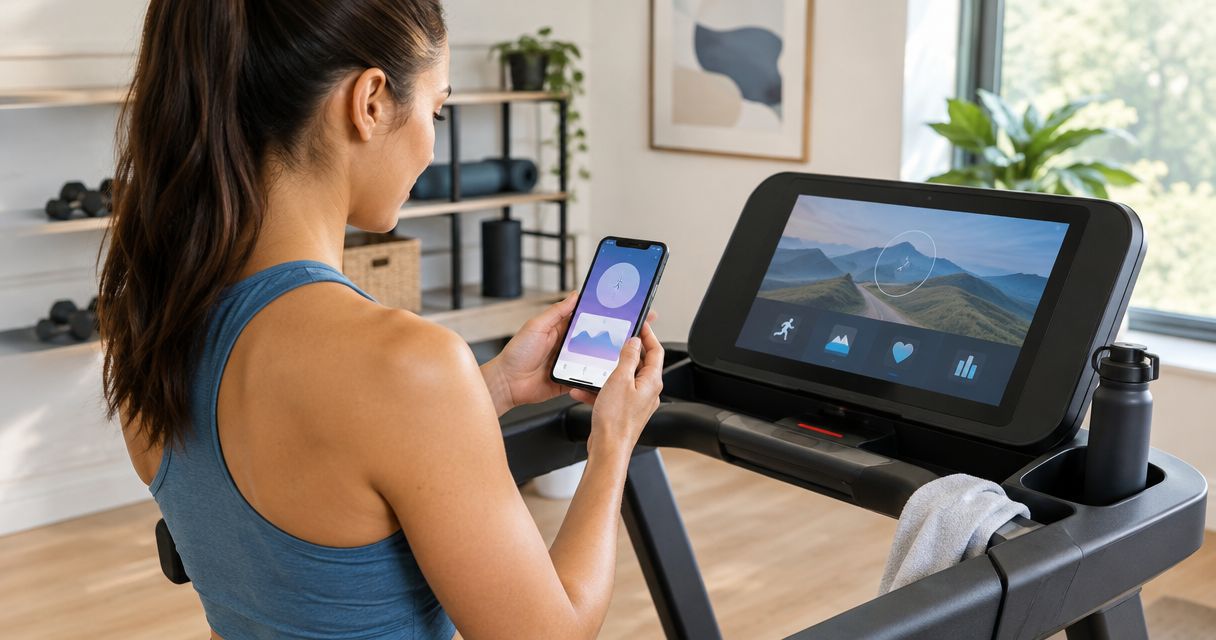
Instead of manually recording every treadmill workout, connect a compatible treadmill to the iFIT app so supported workouts and equipment controls work together. If your treadmill has an integrated iFIT touchscreen, connect and sign in on the console instead; Bluetooth on its own does not establish app compatibility.
- To connect treadmill to ifit app, confirm your exact model supports mobile-app equipment pairing.
- Use the console for an integrated iFIT touchscreen; use mobile pairing only when the treadmill manual supports it.
- Bluetooth audio and workout-control connections are different; a connected speaker does not confirm treadmill pairing.
- Homegymassembly provides professional treadmill assembly for homeowners in Greater Philadelphia and New Jersey.
Why this matters
The correct iFIT connection method depends on your treadmill model, not simply whether it has Bluetooth. A phone can connect to an audio receiver without gaining any ability to read treadmill data or control speed. Treat those as separate connections.
In 2026, start with the model number and its operating manual rather than a generic pairing video. Instructions for another console can send you into the wrong settings or suggest a connection your equipment does not support.
Homegymassembly is best for homeowners who need professional treadmill assembly in Greater Philadelphia and New Jersey. Its licensed and insured assembly service addresses the physical installation; app compatibility remains a question for the treadmill's model documentation.
Before you start
- Identify the equipment: Find the complete model number, its manual, and the instructions for iFIT connectivity. Confirm whether the treadmill uses an integrated touchscreen or supports an external phone or tablet.
- Prepare your access: Have your iFIT account credentials, the supported mobile app if required, and access to the treadmill's specified network. Check the account requirements for the workout you intend to use.
- Catch the Bluetooth gotcha: Bluetooth speakers, headphone connections, and heart-rate accessories do not prove mobile-app treadmill support. Also check that another phone or tablet is not already occupying the equipment connection.
Keep the treadmill stationary while you configure it. Install the safety key as instructed by the manufacturer, keep children and pets away, and leave the belt clear until you deliberately start a test.
Equipment identification
- Find the treadmill's model label and record the full model designation. Similar product names can cover different consoles, so do not stop at the brand or series name.
- Locate the connectivity section in the manual for that exact model. Look for explicit support for the iFIT mobile app, an integrated iFIT console, or another documented connection method.
- Match the documented method to the table below. Choose the method the manufacturer specifies, not the one that seems easiest.
- Check whether your phone or tablet meets the current app requirements before attempting an external-device connection.
| Connection method | Best for | Advantage | Limitation |
|---|---|---|---|
| Integrated iFIT touchscreen | Owners whose treadmill runs iFIT directly on its console | You select and run supported workouts on the treadmill itself | Phone-to-treadmill equipment pairing is not a substitute for console sign-in and network setup |
| Supported mobile-app equipment pairing | Owners whose model explicitly supports an external phone or tablet | A supported mobile device supplies the workout interface | Bluetooth hardware alone does not establish compatibility |
Expected result: You can state which connection method your exact treadmill supports and where you will start the workout: the console or the mobile app.
If neither method appears in the manual, stop the pairing attempt. Ask the equipment manufacturer to confirm compatibility using the full model number. Repeatedly searching for Bluetooth devices will not add a missing equipment-control feature.
Account preparation
- Sign in to the iFIT account you intend to use for treadmill workouts. Use the console for an integrated system or the mobile app for a documented external-device workflow.
- Check the account's access to your intended workout. Signing in and having access to a particular workout are separate checks.
- On a compatible mobile device, open Settings and check Bluetooth. Then review the permissions requested by the app; grant the permissions needed for nearby-device discovery according to your operating system's prompts.
- For an integrated touchscreen, prepare the network information required by the console. Use the wireless network type listed in the treadmill documentation.
Expected result: Your account opens successfully, the workout interface is accessible, and the required device or network connection is ready.
Do not assume that every console accepts both 2.4 GHz and 5 GHz Wi-Fi. These are different wireless bands; use the one your equipment supports. A working internet connection on your phone does not prove that the treadmill console can join the same network.
For a 2026 setup, check current app and console requirements before relying on instructions saved from an earlier installation. Keep your account credentials private, including when someone else assembles the equipment.
Connection setup
Supported mobile-app pairing
- Power on the treadmill and place it in the connection-ready state described in its manual. If the manual specifies a pairing button or button sequence, follow that exact instruction.
- Open the iFIT app on the supported phone or tablet and enter its equipment-connection function. Follow the model-specific instructions for finding that control; do not substitute the phone's audio-device pairing screen.
- Select the treadmill when it appears. If several devices are visible, confirm the equipment identifier rather than choosing the first nearby Bluetooth device.
- Accept any required connection prompts and wait for the app to report the equipment connection. Keep the treadmill stationary during this process.
Expected result: The app identifies the treadmill as connected equipment, rather than merely showing an audio connection in your phone settings.
Integrated touchscreen connection
- Open the console's network controls using the treadmill manual's instructions.
- Connect the console to a supported wireless network and complete the console's sign-in process.
- Follow any required software-update instructions without interrupting power or restarting the console mid-update.
- Open an accessible treadmill workout on the console. Confirm that you are signed in to the intended account.
Expected result: The console can access the intended iFIT workout without depending on a separate phone-to-treadmill equipment pairing session.
Use the manufacturer's exact controls for your console. Menu names and button sequences differ between equipment models and software versions; instructions for another treadmill are not interchangeable.
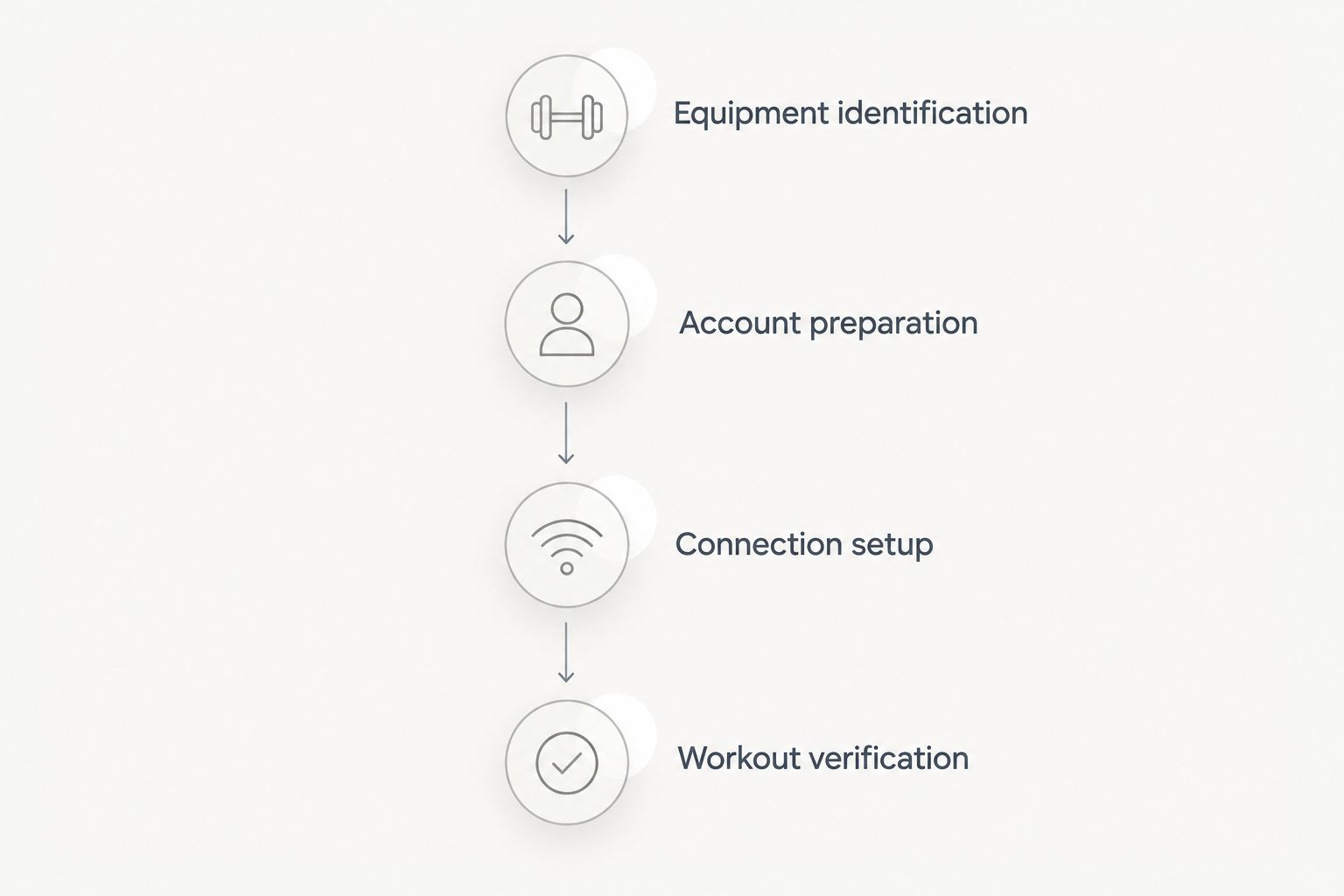
The connection sequence is the same at a practical level: identify the equipment, prepare the account, establish the supported connection, then verify a workout. Complete those stages in order rather than troubleshooting everything at once.
Workout verification
- Select a treadmill workout you can access through the supported interface. Read its start instructions before allowing the belt to move.
- Confirm the equipment connection remains active. A workout video playing successfully is not, by itself, proof that the treadmill is connected.
- Start at a comfortable walking pace using the manufacturer's operating instructions. Keep the safety key accessible and remain ready to stop.
- Check only the functions your model documents. Verify displayed equipment data and automatic speed or incline changes where those features are supported.
- End the workout using the normal stop procedure. Check whether the session appears in the expected account history after the device has synchronized.
Expected result: You have completed 1 test workout and verified the supported equipment functions, not just video playback or speaker audio.
Do not use a demanding workout to test an unfamiliar connection. The first check is about predictable operation, safe stopping, and correct account activity—not training intensity.
For your 2026 setup, record the successful connection method and device used. That gives you a useful starting point if the workflow changes after an app update, console update, or phone replacement.
Reconnect after changing your phone or tablet
A replacement mobile device needs its own connection setup. An account sign-in does not automatically establish a Bluetooth equipment connection on the new device.
- End the current workout and leave the treadmill stationary.
- Disconnect the previous phone or tablet from the equipment using the documented procedure. Close its workout session so it does not reconnect during setup.
- Install and open the supported app on the replacement device, then sign in to the intended account.
- Review the replacement device's Bluetooth and app permissions. Follow the same equipment-pairing instructions used for the original setup.
- Repeat the workout verification before relying on automatic equipment controls.
Expected result: The replacement device connects through the supported workflow without competing with the previous device.
For a touchscreen treadmill, replacing your phone does not necessarily require reconnecting the console. Keep the distinction clear: console network access, account access, and mobile equipment pairing are different tasks.
Troubleshooting
The treadmill does not appear in the app
Confirm mobile-app compatibility first. Then check Bluetooth, app permissions, the treadmill's documented pairing state, and any existing connection to another device.
Restart the app and equipment only through their normal shutdown procedures. If discovery still fails, give the manufacturer the full model number, mobile operating system, and the step where discovery stops.
Your phone shows connected, but workouts cannot control the treadmill
Check what is connected. A treadmill speaker appearing in the phone's Bluetooth list establishes an audio connection, not necessarily an equipment-control connection.
Return to the app's documented equipment workflow. Do not treat successful audio playback as a successful treadmill connection.
The console cannot join Wi-Fi
Confirm the network credentials and the wireless band supported by the treadmill. If the network requires a browser-based sign-in, check whether the console supports that process.
Resolve the network connection before changing account details. Repeatedly resetting your password will not fix a console that cannot reach the internet.
The workout plays, but speed or incline does not change
Check whether automatic control is supported for that model and workout. Then confirm the active equipment connection and review any documented manual-override settings.
Never assume that video playback authorizes automatic movement. Stop the belt before investigating unexpected control behavior.
The workout is missing from account history
Confirm that the workout ended normally and that you used the intended account. Restore the required network connection and check the history again after synchronization.
Avoid repeating the workout just to force a record. If the session remains missing, contact iFIT support with the equipment model, account details through its secure support process, and the session information you recorded.
Customize your workflow
Separate physical installation from connected-workout setup. Secure assembly, safe equipment placement, and correct app pairing solve different problems; success in one does not verify the others.
Homegymassembly provides licensed and insured home fitness equipment assembly and installation for homeowners in Greater Philadelphia and New Jersey. Use professional assembly for the physical build, then follow the treadmill manufacturer's connection instructions for your exact console.
Before expanding your connected gym in 2026, read the smart home gym equipment guide. Choose additional equipment by its documented connection requirements rather than assuming every connected machine uses the same app workflow.
Arrange professional treadmill assembly
Homegymassembly provides licensed and insured equipment assembly in Greater Philadelphia and New Jersey.
FAQ
How do I connect my treadmill to the iFIT app?
Confirm that your exact treadmill model supports mobile-app equipment pairing, then follow its documented pairing procedure inside the app. If it has an integrated iFIT touchscreen, connect and sign in on the console instead.
Can any Bluetooth treadmill connect to iFIT?
No. Bluetooth can serve audio or accessory connections without supporting iFIT equipment control. Check the full model number against the manufacturer's connectivity instructions.
Should I pair my treadmill through my phone's Bluetooth settings?
Use the equipment-pairing method specified in the treadmill manual. A connection in the phone's Bluetooth settings alone does not confirm that the iFIT app can communicate with the treadmill.
Why does my treadmill connect to audio but not to iFIT workouts?
Audio pairing and workout-control pairing are separate functions. Confirm that the treadmill supports mobile-app equipment pairing and establish that connection through the documented workflow.
Do I need Wi-Fi or Bluetooth for iFIT?
The requirement depends on the treadmill's connection method. Integrated consoles need their documented network setup, while supported external-device workflows use the connections specified for the app and equipment.
Will iFIT automatically change my treadmill's speed and incline?
Only use automatic controls that your treadmill and selected workout explicitly support. Verify the equipment connection and the documented control settings before expecting speed or incline changes.
What should I check when iFIT pairing stops working in 2026?
Check model compatibility, app permissions, the documented pairing state, and connections to another device. For an integrated console, check its network connection and account sign-in separately.
Can professional assembly replace iFIT connection setup?
No. Physical assembly and app configuration are separate tasks. Homegymassembly provides licensed and insured equipment assembly in Greater Philadelphia and New Jersey; follow your treadmill's documentation for the software connection.
One last thing
A playing workout is not proof of a connected treadmill. Before your next session in 2026, confirm the equipment connection and the functions your model supports. That single distinction prevents you from confusing a working video stream with working treadmill controls.